Page 2 of 2
Re: How to Create a Table and Play with Others
Posted: Wed Aug 05, 2026 4:32 am
by Dave
The Host of the table will get a notification. There will be a DING! and he'll see a red notification bell up by his menu button and within the menu near his Players menu item.
If he follows the notifications and opens the players menu, he'll see that a candidate has appeared. By clicking Stand By, Fred has notified the host that he'd like to join the game. The host can click the Invite button.

- 35.jpg (72.48 KiB) Viewed 22 times
Re: How to Create a Table and Play with Others
Posted: Wed Aug 05, 2026 4:35 am
by Dave
In the lounge, Fred gets a notification bell and sees that he's been invited to sit at the table. He can now click Accept.
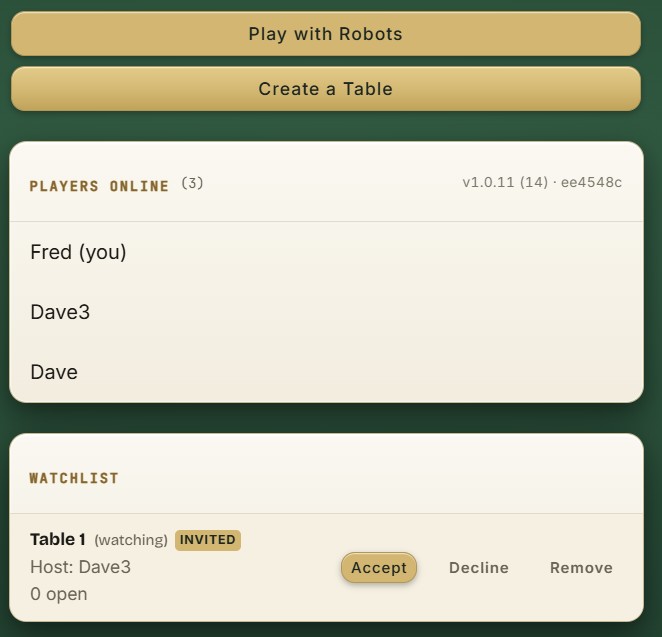
- 36.jpg (45.76 KiB) Viewed 19 times
Re: How to Create a Table and Play with Others
Posted: Wed Aug 05, 2026 4:44 am
by Dave
Now, here's what the Host sees on his players screen: Fred has been promoted to Standing.
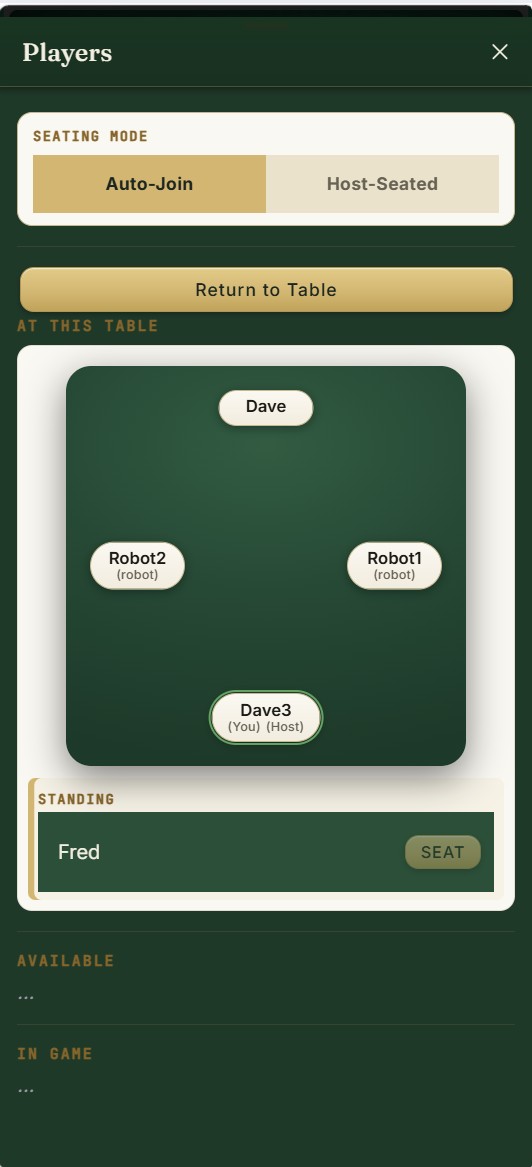
- 37.jpg (63.01 KiB) Viewed 19 times
Now, the host can seat him. If there are robots present, just click on a robot and select "remove from table." Now, the robot's seat shows empty with a "Seat" placeholder in his place. The host can click the seat and then the player (or the other way around) and he can bring him into the table.
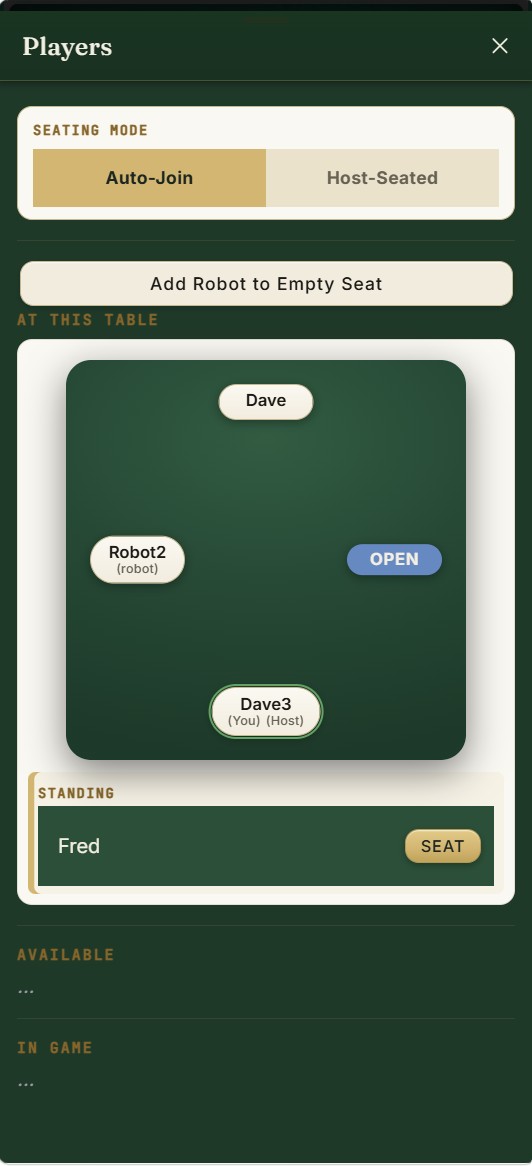
- 38.jpg (63.16 KiB) Viewed 19 times
Re: How to Create a Table and Play with Others
Posted: Wed Aug 05, 2026 4:57 am
by Dave
A Host Seated table doesn't allow people to just join and take a seat. It gives you control over who can join.
We'll touch on it briefly because you probably won't be using it much here in Beta testing, and it's pretty intuitive once you understand the join process in general.
If you create a Host Seated table, here's what others see in the lounge:
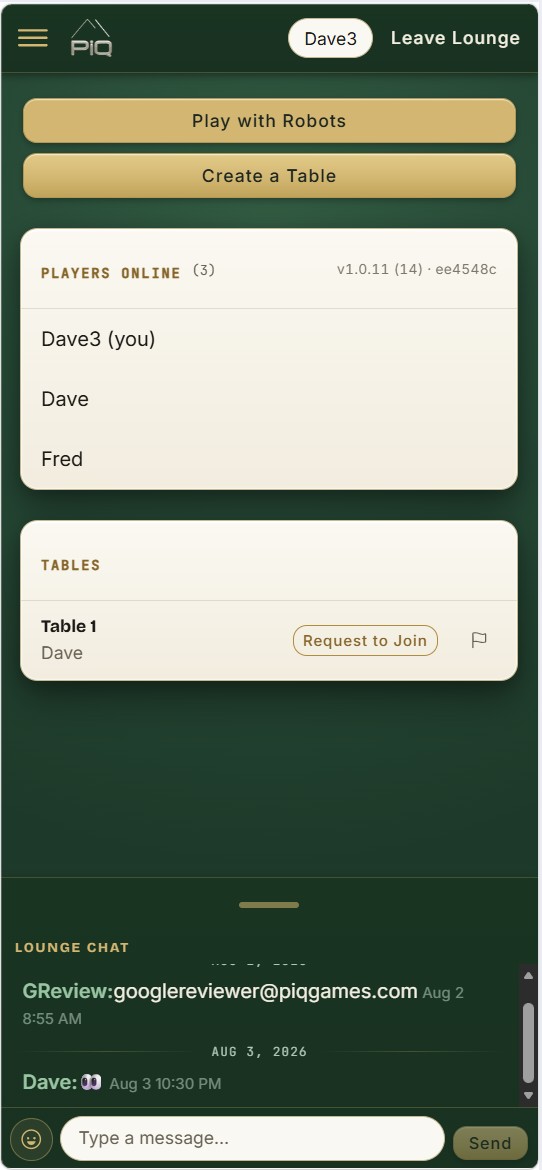
- 39.jpg (78.59 KiB) Viewed 17 times
Instead of a Join button, they see a Request to Join button. That puts them into the candidate flow we just looked at in the Auto Join table that was fully seated.
Re: How to Create a Table and Play with Others
Posted: Wed Aug 05, 2026 5:00 am
by Dave
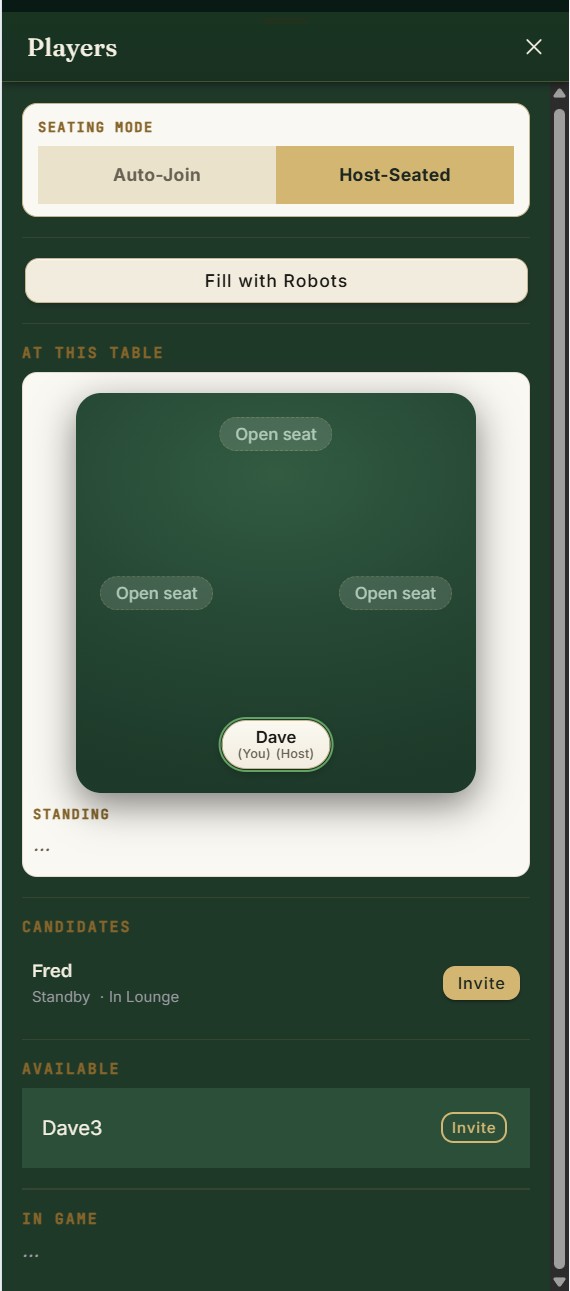
Here's what the host sees: He sees Fred in the candidate list because Fred requested to join. He also sees any other players that are hanging out in the lounge and can invite them to play. At the bottom of the list, he sees players that are already seated at another table.
- 40.jpg (75.67 KiB) Viewed 17 times
Re: How to Create a Table and Play with Others
Posted: Wed Aug 05, 2026 5:02 am
by Dave
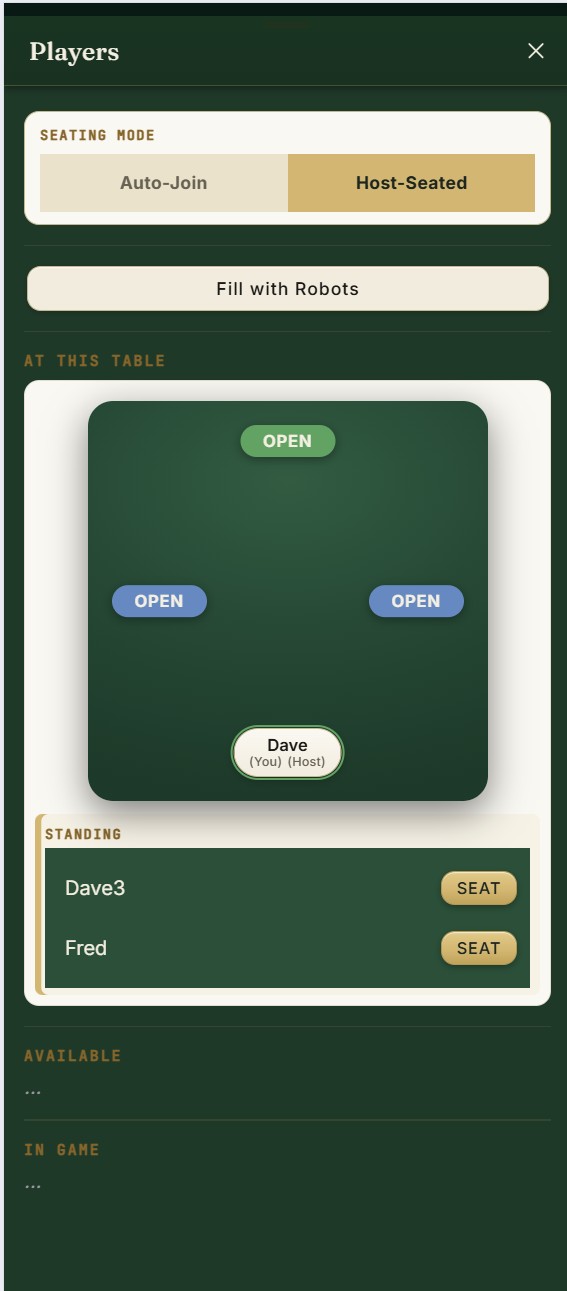
Once the other players are invited and they accepted, they show up in the standing area (they don't go directly to a seat) and the host can seat them from there. This gives the host control over who's partners.
- 41.jpg (66.39 KiB) Viewed 17 times
Re: How to Create a Table and Play with Others
Posted: Wed Aug 05, 2026 5:05 am
by Dave
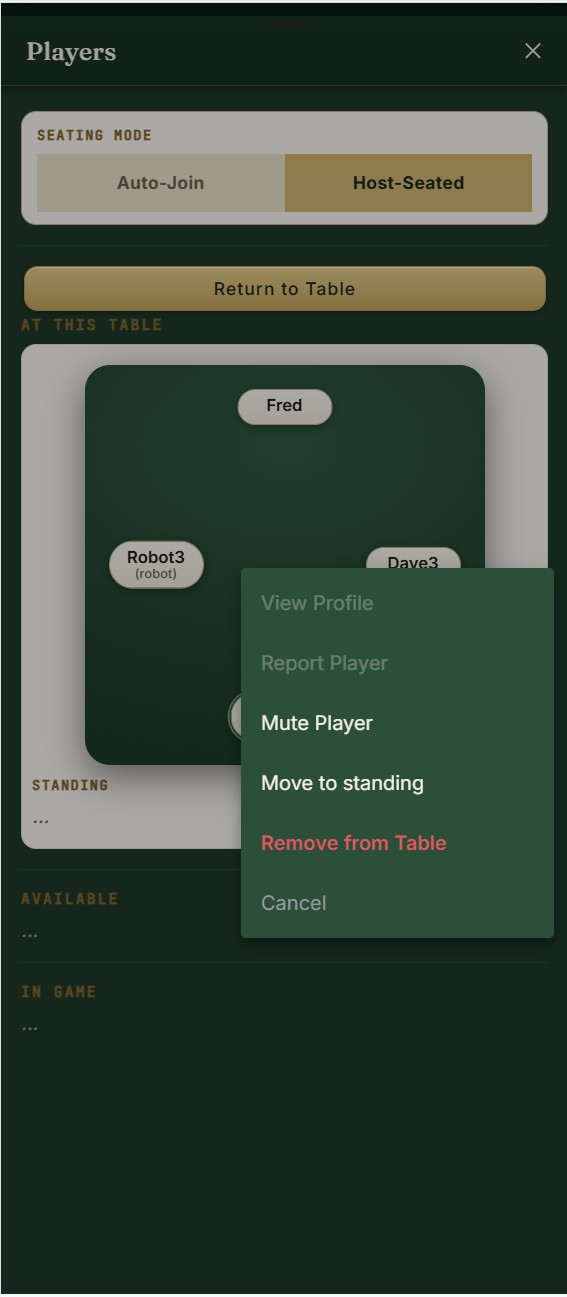
The Host can click "fill with robots" at any time to complete the table. Now, notice that since the game hasn't started yet - or when we're between games - the Host can rearrange seating by clicking any player and moving them to standing. So if he wants to change partners, he can move two players to standing and then put them in the other seats.
- 42.jpg (61.32 KiB) Viewed 17 times
Re: How to Create a Table and Play with Others
Posted: Wed Aug 05, 2026 5:10 am
by Dave
Once a game is underway, the Host can no longer move players to standing to rearrange them. The Host CAN still remove a player (Boot them.) This is at the Hosts discretion. The player may have stopped playing - lost their connection, perhaps. The Host can also remove and replace robots at any time, or substitute a robot in for a lost player.