Page 1 of 2
How to Create a Table and Play with Others
Posted: Wed Aug 05, 2026 3:57 am
by Dave
This will be your overview of how the "Player Logistics" process works in PiQ Euchre. It's all about who's where and how they get there.
Let's start with creating a table. From the lounge, you'll click the Create a Table button.
This is the first page you'll see. It's where you set your table options.

- 22.jpg (43.15 KiB) Viewed 54 times
At the time of Beta testing, the options are pretty simple. Set the table to be Auto Join or Host Seated, and toggle whether the game is Stick the Dealer or not. Let's start with an Auto Join table. When your table is Auto Join, anyone can grab a seat and join you.
Re: How to Create a Table and Play with Others
Posted: Wed Aug 05, 2026 3:59 am
by Dave
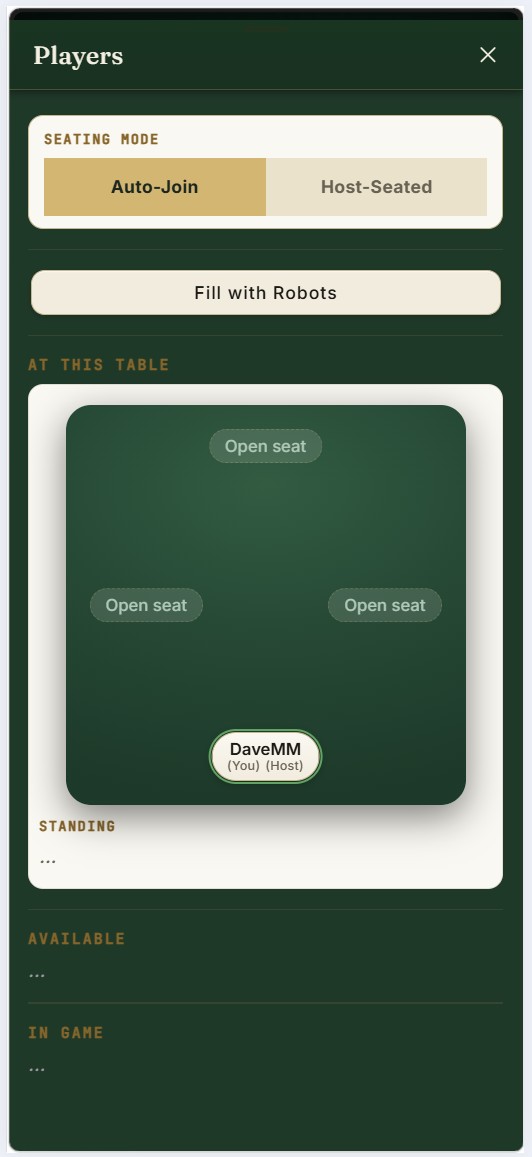
When you create an Auto Join table, you'll land on the game table and your Players Menu will automatically open as an overlay. From here, you can invite players or you could just click "fill with Robots" now, and it'd be the same thing as clicking "play with robots" from the lounge - except this way you did have the option to make it Stick the Dealer. We'll get more into the Players Menu later.
- 48.jpg (64.76 KiB) Viewed 28 times
Re: How to Create a Table and Play with Others
Posted: Wed Aug 05, 2026 4:00 am
by Dave
.
Re: How to Create a Table and Play with Others
Posted: Wed Aug 05, 2026 4:04 am
by Dave
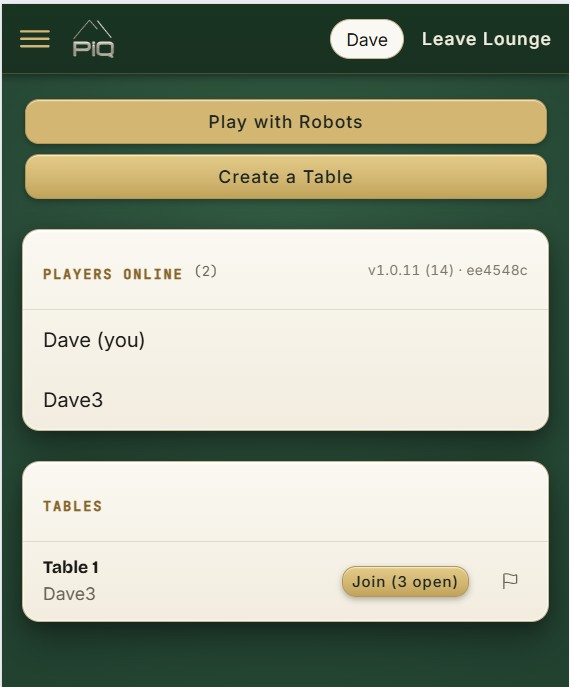
Here's what others see in the lobby when you've created an Auto Join table:
- 24.jpg (48.43 KiB) Viewed 51 times
They see your table with you there, and a Join button that tells them there are three open seats.
This is the quickest way to get a table together. If you see a table in the lounge, grab a seat!
Re: How to Create a Table and Play with Others
Posted: Wed Aug 05, 2026 4:06 am
by Dave
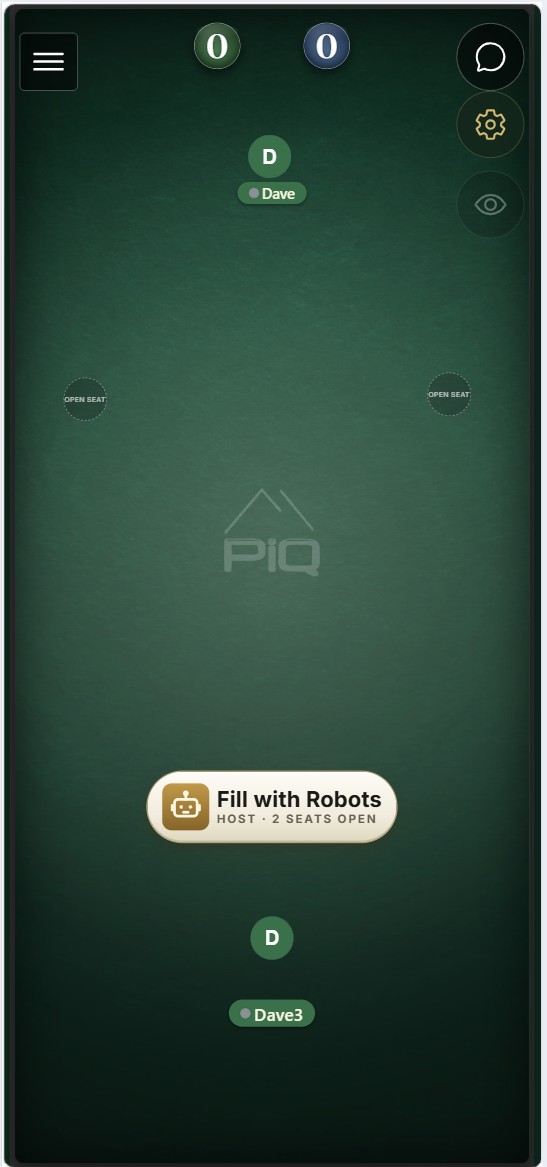
When a second person joins, they'll land as your partner. The third and fourth joiners will land as the opponents. Or, you could click "fill with robots" at any time
- 26.jpg (66.86 KiB) Viewed 51 times
Re: How to Create a Table and Play with Others
Posted: Wed Aug 05, 2026 4:08 am
by Dave
Once all of the seats are filled, everyone gets a READY button. Once all are clicked, the game begins.

- 27.jpg (69.67 KiB) Viewed 51 times
Notice that since the game has not yet started, you can remove a robot here just by clicking on the X near his avatar. We'll get into adding and removing players a little further down this series.
Re: How to Create a Table and Play with Others
Posted: Wed Aug 05, 2026 4:13 am
by Dave
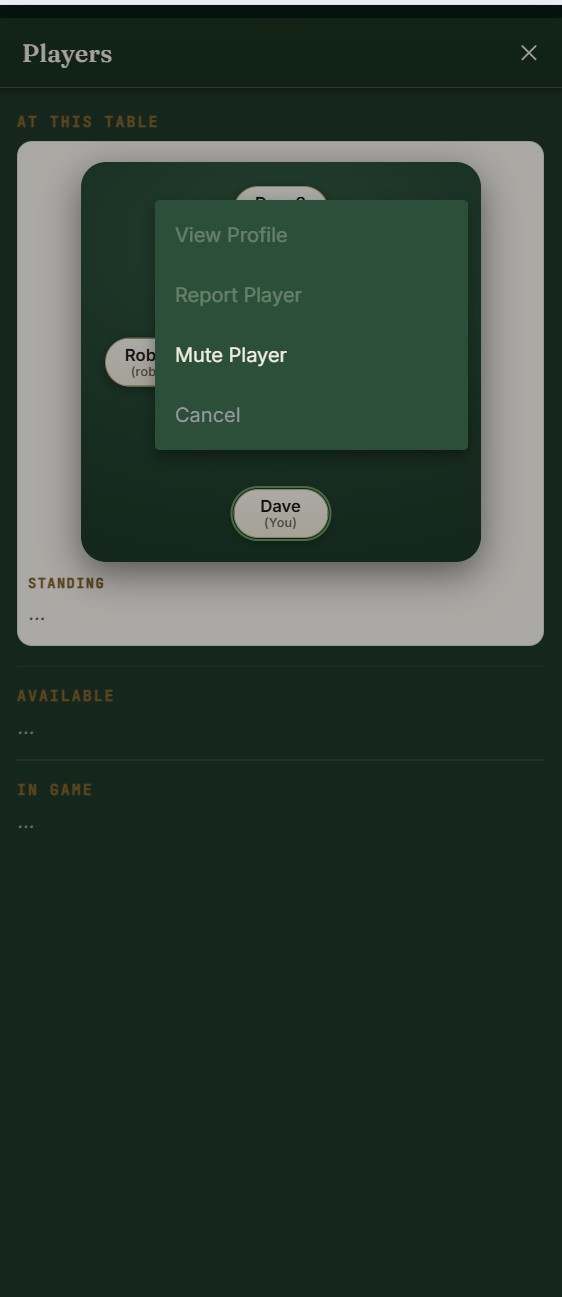
Now let's look at the players menu now that we've got a game in process. First, the simpler one. This is the players view (not the hosts) It's generally VIEW rather than an action panel, he can see who is where. He has the option to click on a player and do some actions, though.
- 29.jpg (41.61 KiB) Viewed 50 times
Re: How to Create a Table and Play with Others
Posted: Wed Aug 05, 2026 4:16 am
by Dave
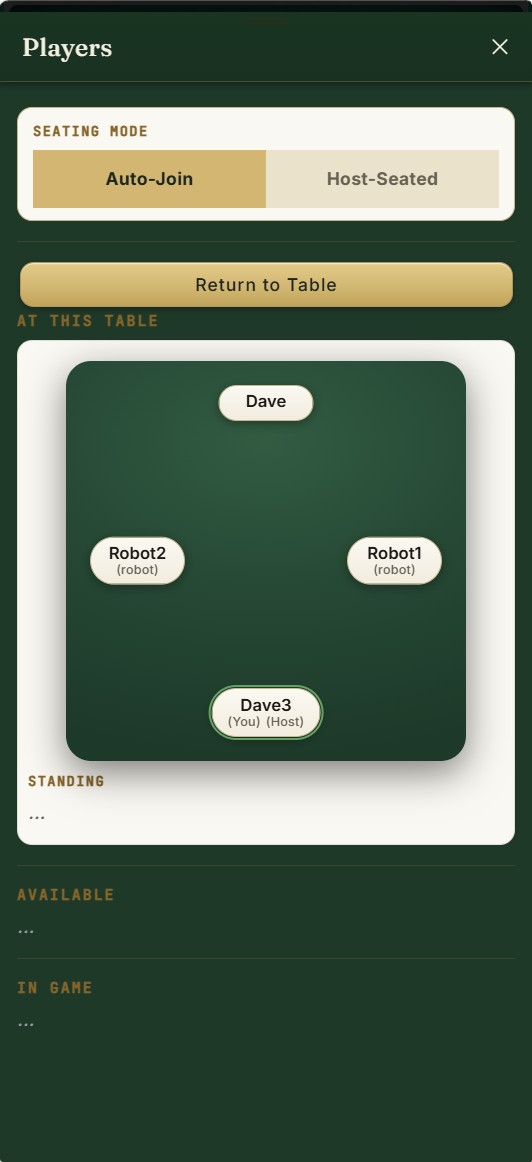
The Host's Player Menu is where he manages everything about who is playing and where. He can change the table from Auto Join to Host Seated, or vice-versa - but his control over who is where all starts here.
- 28.jpg (57.23 KiB) Viewed 50 times
Re: How to Create a Table and Play with Others
Posted: Wed Aug 05, 2026 4:21 am
by Dave
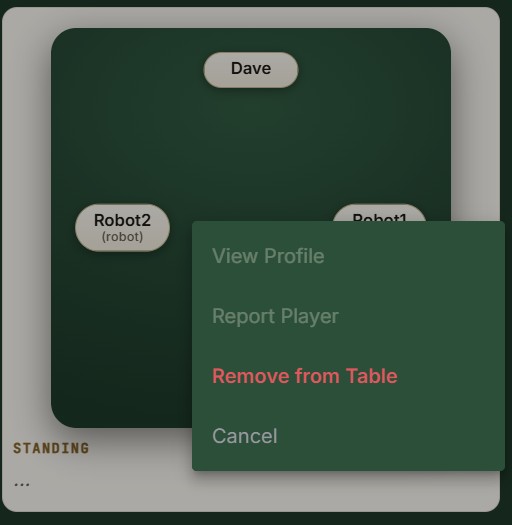
If he clicks on a player, he has the option to remove them from the table
- 31.jpg (24.18 KiB) Viewed 49 times
We'll use this to remove a robot in the next few posts.
Re: How to Create a Table and Play with Others
Posted: Wed Aug 05, 2026 4:25 am
by Dave
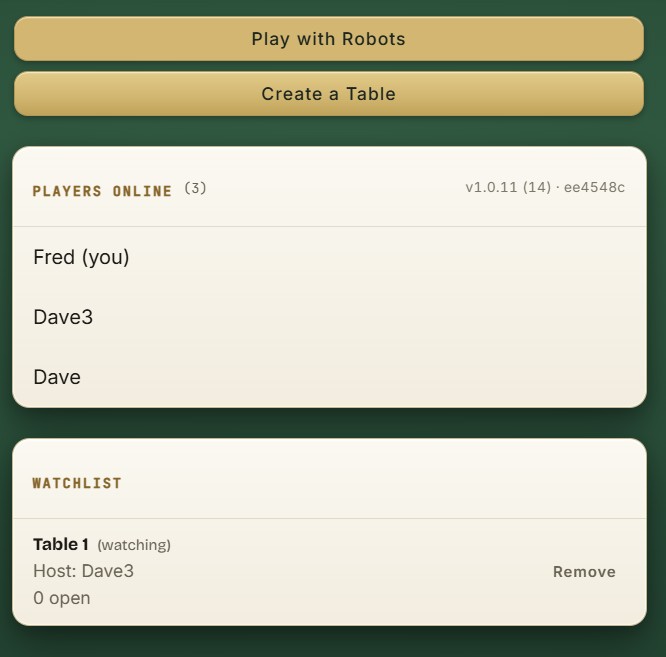
Let's take a look at what others see in the lounge while the two of you are playing with two robots:

- 33.jpg (47.7 KiB) Viewed 49 times
The table is full with four active players (two humans, two robots) but it's still Auto Join, so he can click the Stand By button. For the player in the lounge, he now sees this table promoted to his Watchlist
- 34.jpg (47.4 KiB) Viewed 46 times